Recently I set up an old iPad as a sort-of HUD and control panel that sits on my desk, with quick access to: 1) location for my wife and each kid1, 2) Homekit/Shortcuts buttons to control office lights and climate, 3) my Aranet CO₂ sensor, 4) this week’s weather forecast, and 5) my personal to-do lists.

A few of the home automation buttons integrate Sensibo, which is an awesome device that replaces your mini-split’s default “dumb” remote with a wifi-enabled “smart” device instead. It enables a ton of features that many mini-splits lack, like thermostat-style scheduling, Apple Homekit/Siri integration, filter status, etc.
I highly recommend Sensibo, but in trying to realize my control-panel-powered future I did run into some limitations with their Apple Homekit support, and thought I’d share how I worked around them.
There are two primary gaps in Sensibo’s Homekit integration:
- Fan speed isn’t exposed to HomeKit. You can change the temperature, but cannot set the fan level (low, medium, high, auto).
- There is no HomeKit-friendly way to adjust temperature up or down, instead you have to set a specific temperature each time, which is tedious. I wanted two simple buttons: “make it warmer” and “make it cooler.” Sensibo actually offers these in a widget but only on their premium plan, which I don’t otherwise need. I’m not paying $5/month for a button.
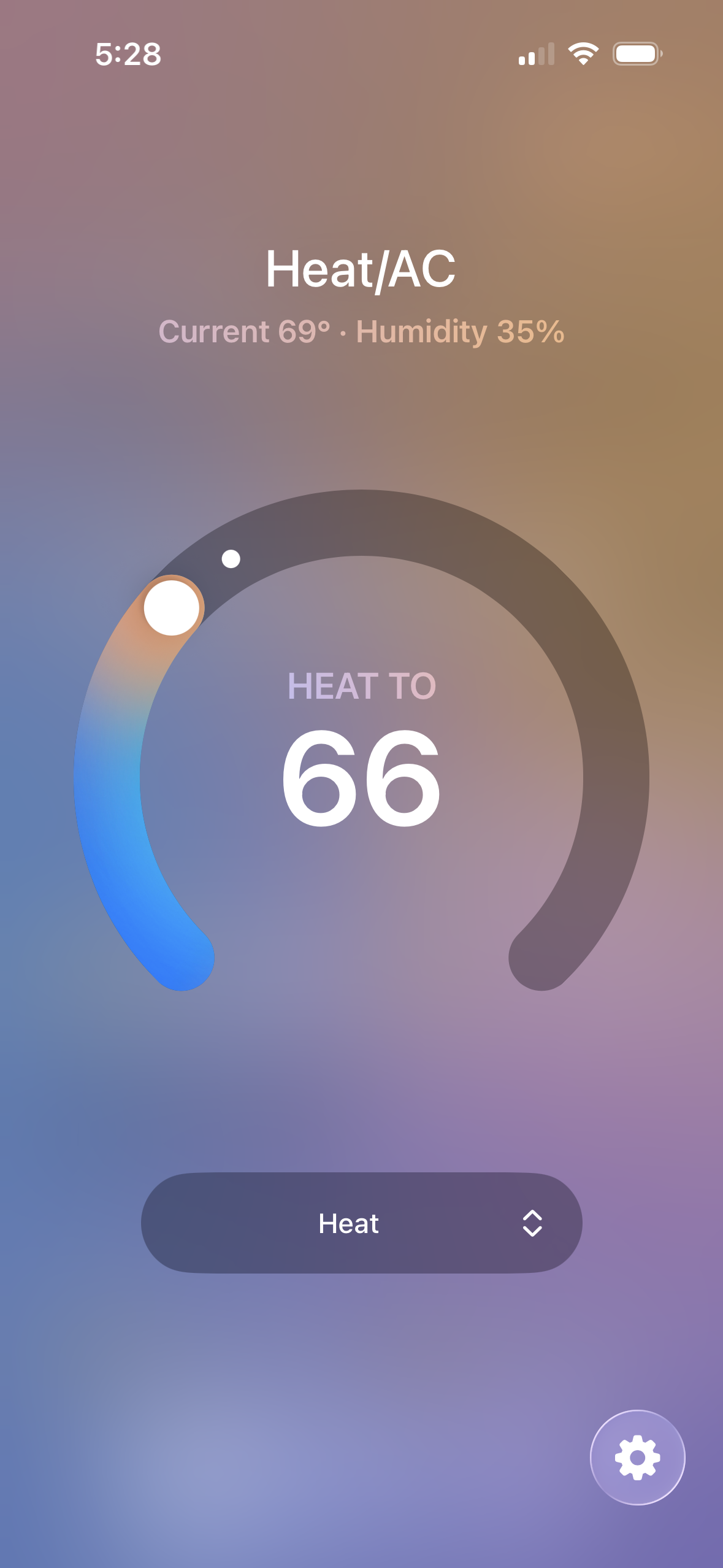
Even though these features aren’t available through Sensibo’s built-in Apple integration, we can recreate them using the Sensibo API and Apple Shortcuts.
Download the Shortcuts
Change Fan Speed
https://www.icloud.com/shortcuts/4d02c2fc69444067acdf690b4a7248ff
Change Temperature
Warmer: https://www.icloud.com/shortcuts/11a9942523224575bd3a09bb5c8d4c14
Cooler: https://www.icloud.com/shortcuts/ed5a8561e1d34535b842ee56e86287b6
Note: many AC units show temperatures in Fahrenheit even though they store the values in Celsius. This can cause temperature adjustments to jump in slightly uneven increments rather than a precise 1 degree.
How to set them up
To use these Shortcuts you’ll need:
- Your Sensibo API key, and
- Your Sensibo device ID (so Sensibo knows which unit to control if you have more than one). To retrieve your device ID(s), first get your API key, then go to this URL with your API key appended to the end:
https://home.sensibo.com/api/v2/users/me/pods/?apiKey=PUT API KEY HERE
Once you have retrieved those, simply download and open the shortcut, paste your API key and deviceID in the Text fields where indicated, and save the Shortcut.
Once those values are filled in, you can run the Shortcut—it should immediately work.

- I work from home, it’s nice to know if someone else is around to let the dog out when I’m on the phone 😅